Demo · Digital planning board for production
Digital planning board for production: from magnetic board to capacity and delivery dates
Many workshops plan on a whiteboard, a magnetic board or in Excel. That works, until a rush order has to fit in and nobody sees which orders it makes late. In the Digital planning board demo, the schedule of a fictional metalworking company sits on one board, with the load per machine per day and the delivery date of every order. The demo is in Dutch; this page explains what the board does and how it calculates.
Explore freely · no login · fictional data · in Dutch
Why a board on the wall or in Excel runs out
A magnetic board or whiteboard shows clearly what is where. It does not know how long an operation takes, that milling can only start once sawing is done, or which delivery date moves when you move one card. The planner works that out in their head. An Excel schedule does add up hours, but leaves the order between machines and the knock-on effect on the delivery date to the planner just the same.
A digital planning board keeps the overview of the board on the wall and works those steps out itself: the load per machine per day, the expected finish date per order, and what else moves with every change.
What you can do in the demo
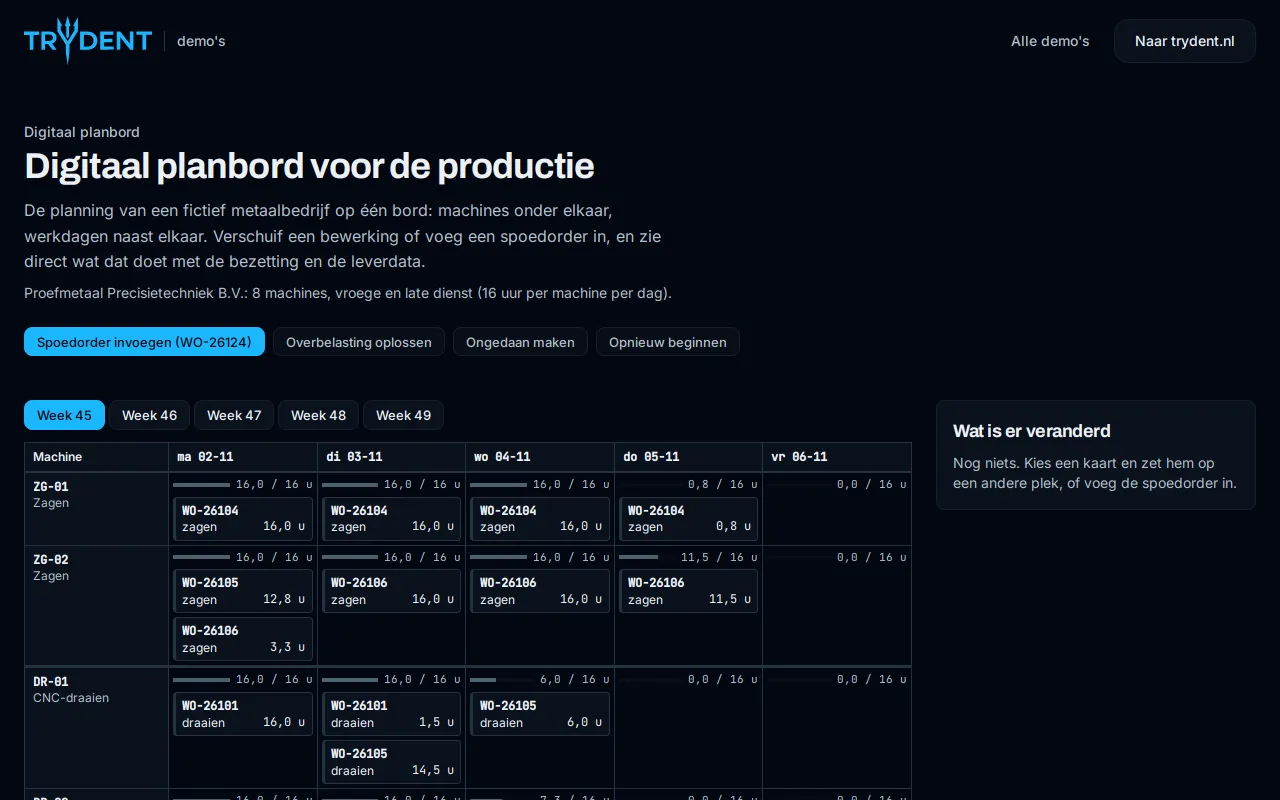
The board shows eight machines in four groups (sawing, CNC turning, CNC milling and bending) in rows, and the working days of five weeks in columns. Each machine runs an early and a late shift, 16 hours a day together. The board holds 22 fictional orders with 52 operations; each card is one operation.
- Move an operation: pick a card and place it in another cell, or drag it. This also works with the keyboard, and on a phone one day at a time.
- An operation can only go to a machine in the same group, and never before the previous operation of the order is done. A move that cannot work is refused with the reason.
- When an operation moves later, the next operations of that order move with it, so you see the effect on the delivery date.
- Insert a rush order and see which days become overloaded.
- Resolve overload moves other work later until no day is overloaded. Your manual choices and the rush order keep their place.
- The changes panel shows which operations moved, which delivery dates changed and which days are overloaded. Undo and start over are always available.
Overload is allowed, as on a magnetic board
The board does not stop you when a day gets more than 16 hours of work: it shows the overload straight away, and you decide. That is deliberate, because a planner sometimes knows an hour of overtime is possible or an order may ship later. Only when you choose Resolve overload does the board remove the overlap per machine. What you moved yourself and the rush order go first; other work flows around them and moves later, and the sequence within each order still holds.
Inserting a rush order
The rush order in the demo: 120 hardened locking pins, received on Monday 2 November, material on Tuesday, requested for Thursday 5 November. The routing is sawing, then CNC turning. The board puts each operation on the least loaded machine in its group, as early as possible. All data is fictional.
| Step | Calculation | Result |
|---|---|---|
| Sawing | 10 min setup + 120 × 5 min, on ZG-01 from Tue 06:00 | 10.2 h |
| CNC turning | 30 min setup + 120 × 8 min, on DR-01 from Tue 16:10 | 16.5 h |
| Rush order done | Requested Thu 05-11 | Wed 04-11 16:40, on time |
| Load | ZG-01 Tue 26.2 h, DR-01 Tue 21.8 h and Wed 16.7 h, out of 16 h | 3 days overloaded |
| Resolve overload | The rush order keeps its place, other work moves later | 11 operations later, all orders on time |
Here the slack in the schedule absorbs the rush order. If you then move more work yourself, the board shows straight away which order does become late, and by how many days.
With your own machines, orders and ERP
The demo uses one fictional company and a fixed starting schedule. In a real company the orders, routings and standard times come from the ERP or the planning you already use, and what changes on the board can go back there. Which integration is possible depends on your system; Trydent finds that out first.
The board is one part, not a complete package: Trydent builds it as custom software around your own machines, shifts and way of planning. It also fits the other demos: an order scheduled automatically on finite capacity, and shop floor time tracking that reports back what was actually made.
Frequently asked questions
- What is a digital planning board?
- A planning board on a screen instead of on the wall: machines or departments in rows, days in columns, and a card per operation. Unlike a magnetic board, the digital board works out the hours, the order of operations and the delivery dates itself when you move something.
- Is anything stored when I use the demo?
- No. The demo runs entirely in your browser, without a login. After a reload the starting schedule is back.
- Does the board schedule the whole production by itself?
- No. The board lets you plan and works out the consequences; only Resolve overload moves work, and only later. If you want orders scheduled automatically on finite capacity, see the From purchase order to machine schedule demo.
- Can I load my own schedule into the demo?
- No, the demo only uses the fictional schedule of the demo company. In a free introductory call, Trydent looks at your own planning board or Excel schedule with you.
Bring your planning board
In a free 30-minute introductory call, Trydent looks with you at how you plan today, on a board, in Excel or in the ERP. A photo of the board is enough.
Book a free introductory call